
Your first week: a calm checklist
Very little goes wrong if you leave the system alone while you settle in. The aim of the first week is to find out what you have and keep it intact for whoever looks after it next.
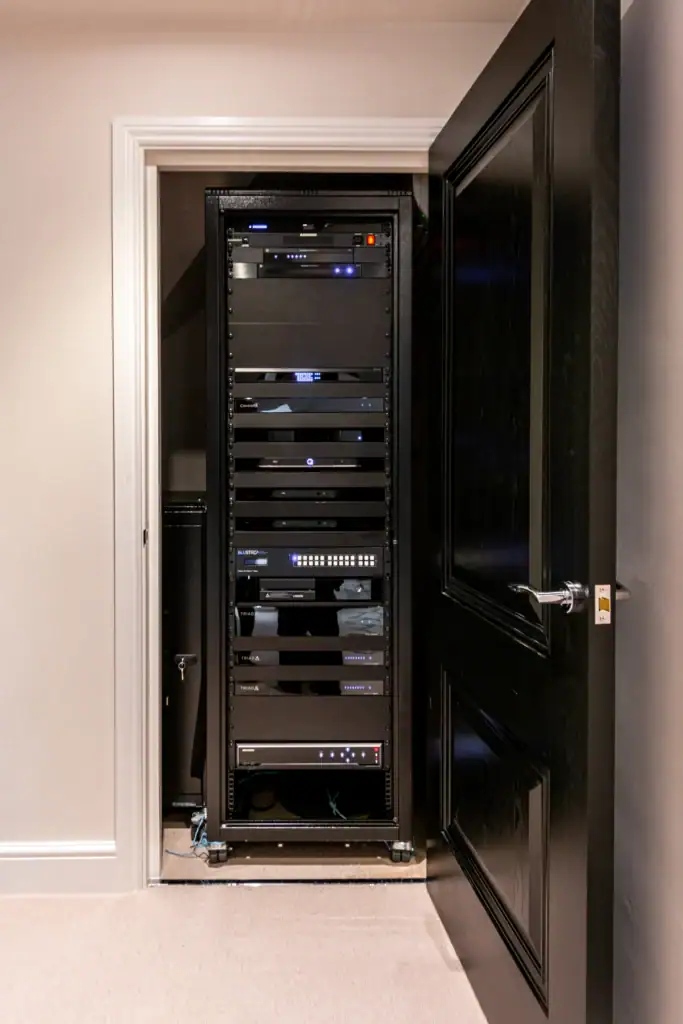
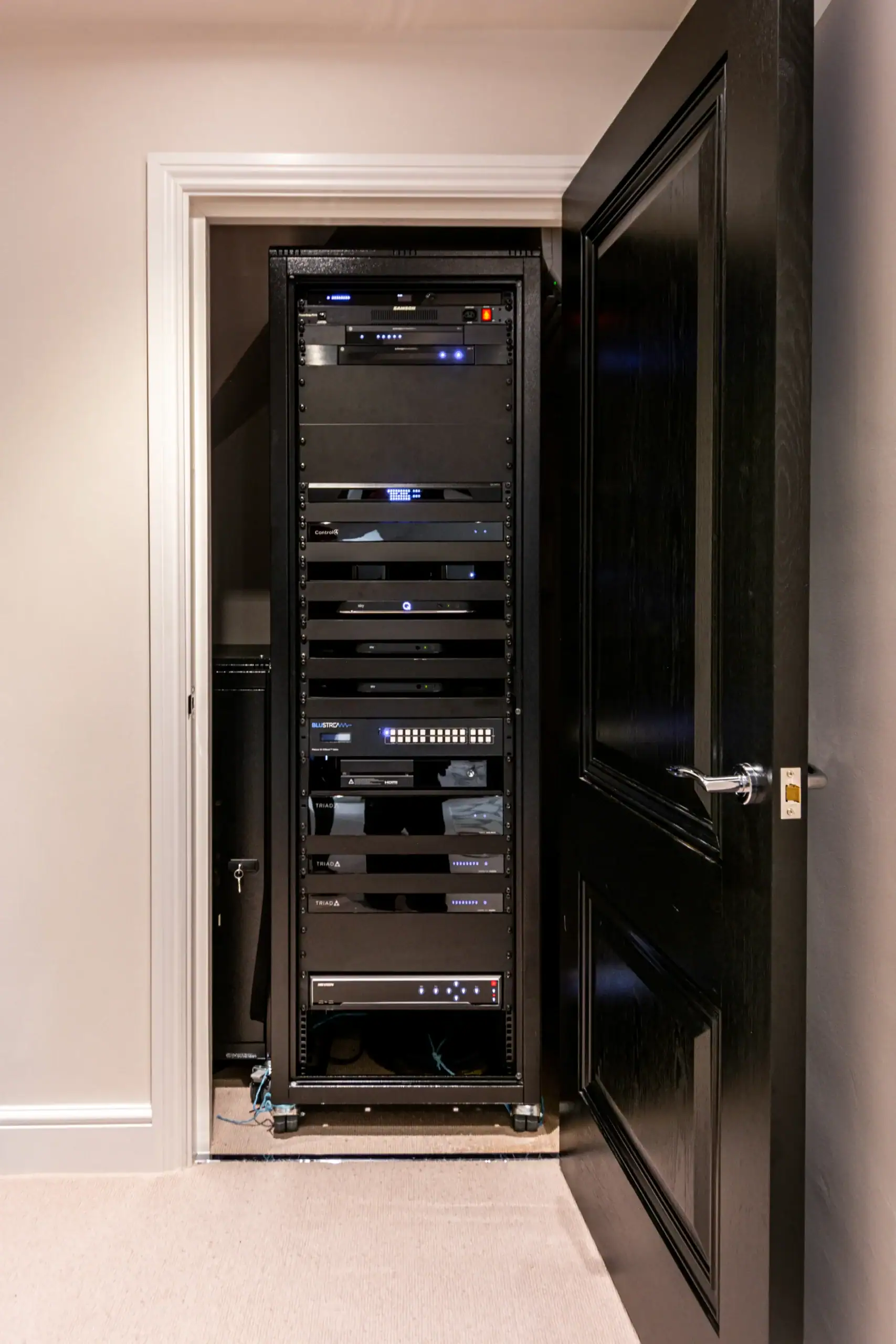
- Find the rack or cupboard. Most systems have a central home for the controller, amplifiers, network switch and router, often under the stairs, in a plant room or in the loft. Note where it is and check it has power and some ventilation.
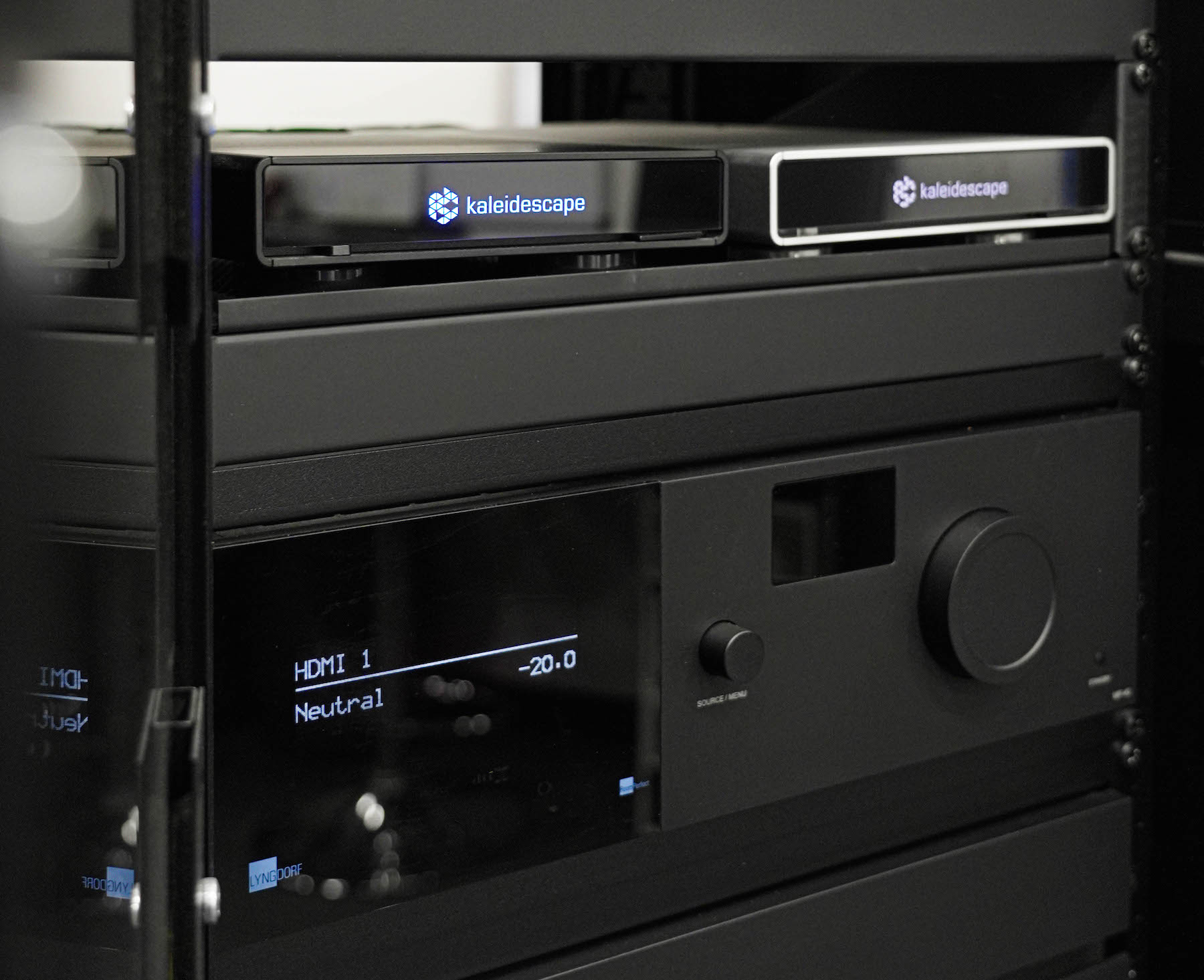
- Photograph every label. Take clear photos of the front and back of each box, including model numbers, serial numbers, MAC address stickers and any handwritten notes. They save time on the first visit.
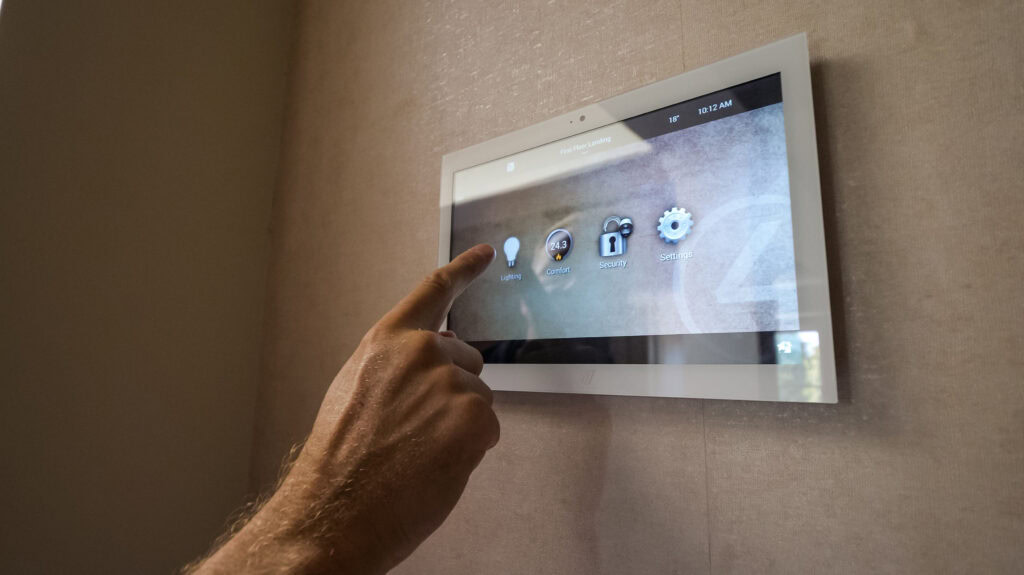
- Gather the hand-held kit. Collect remotes, wall touchscreens, any tablets left behind and their chargers, and keep them together.
- Don't factory reset anything. A reset can wipe the programming that makes the house work. Lutron, for example, says a RadioRA 3 processor with no cloud backup and no original project file has to be factory defaulted and given a new project. Leave the buttons on the back of boxes alone.
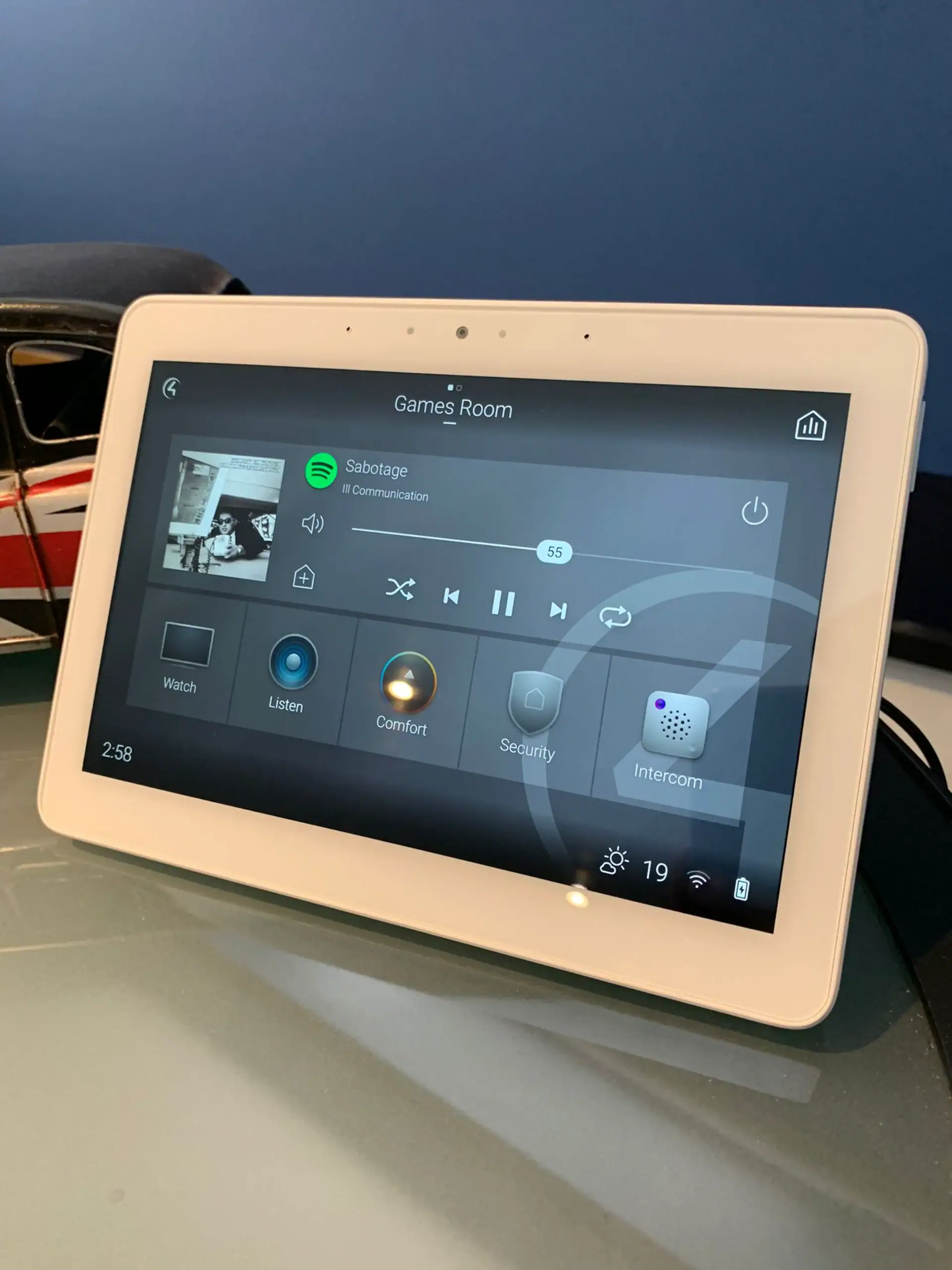
- List the apps and logins. Write down which apps the seller used (Control4, Lutron, Sonos, cameras, heating) and which accounts they were signed in to. You will need the Wi-Fi name and password and, ideally, the router's admin login.
- Ask the seller and the agent. Ask for the name of the company that installed the system, any handover pack and any drawings. Control4 itself recommends getting the original installer's contact details from the seller.
- Note what works and what doesn't. A simple room-by-room list covering lights, audio, TV, heating, gates and cameras is the most useful thing you can bring to a survey.
If the whole house misbehaves at once, suspect the network first: Control4 relies on it for the app, music, cameras and remote access, as our guide to Control4 network requirements explains.
Getting a Control4 system into your name
Control4 systems are installed and looked after by Control4 professionals, and a new owner has two separate things to sort out: the customer account, which is yours, and the professional linked to it, which you choose. If the platform is new to you, our introduction to what Control4 is covers the basics.
The account. Control4's advice to buyers is that the previous owner logs in to their customer account, makes sure any 4Sight subscription won't auto-renew, and changes the profile email address to yours. You then receive a "Welcome to Control4" email and should reset the password. If you are not in contact with the previous owner, Control4 says a Control4 professional may need to come on site and register the account to you.
What you can change yourself. Control4's user guide says you can create simple When >> Then automations online, plus lighting scenes and room favourites, without calling anyone. Composer HE, sold separately for Windows PCs, adds keypad LED colours, dimmer ramp rates, wake-up scenes and thermostat schedules. Anything deeper, such as adding devices or changing how the system is put together, is work for a Control4 professional.
The professional. Once the account is yours, you choose who looks after it. Snap One, which publishes Control4's support guides, documents a Change My Pro option under My Account and Smart Home Pro in the customer portal, which is also reachable from the app. The new company then accepts you in OvrC, Snap One's remote management platform. That route only works if the project was handed off to the customer in OvrC. Snap One also describes a System Takeover, carried out with a device connected to your network, that moves the system across at the customer's request. Our guide to switching Control4 installer covers the change in more detail.
Snap One says a takeover does not reset the usernames and passwords of individual devices, which is why any logins you can find still matter. It also lists systems running OS 3.2.1 or lower, or with an HC-800 or HC-250 as the main controller, among the reasons a takeover can fail, so older systems may need some attention first.
What happens on a takeover visit
A takeover starts with someone standing in front of the equipment. On our takeover and maintenance visits we survey what is installed, identify the controller, the software version and the devices, and work out how the system has been programmed. Because the network carries the app, music, cameras and remote access, it belongs in every takeover too.
Whoever you choose, a good takeover should leave you with:
- an inventory of the equipment, room by room;
- the Control4 software version, and whether the hardware can still take updates;
- a check of the network and Wi-Fi the system depends on;
- the accounts in your name, with logins recorded somewhere safe;
- a copy of the current programming kept before anything is changed;
- a plain list of what works, what doesn't and why.
From there, we fix what isn't working and reprogram where needed, so the house behaves the way you want it to rather than the way the previous owner lived.